Watch your app with Claude and Leash
10 minutes · needs a Leash account and a paid Claude plan
Add Leash to Claude
In Claude, open Customize → Connectors → Add → Add custom connector. Give it a name (for example “Leash — watch”) and paste the URL below. Claude sees that Leash needs a sign-in and sends you there.
https://leash.build/mcp/agent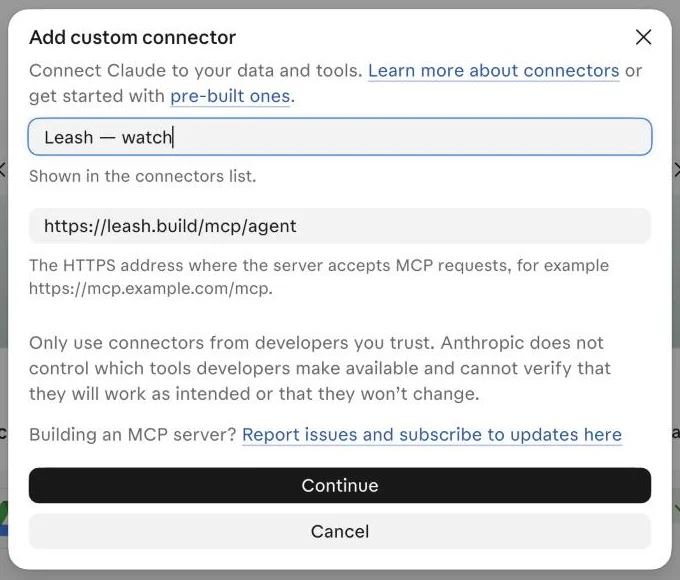
Approve it on Leash
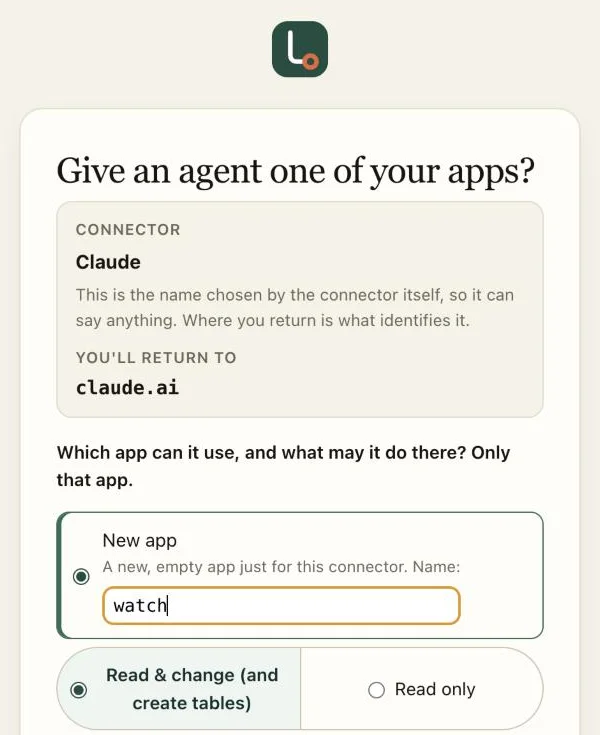
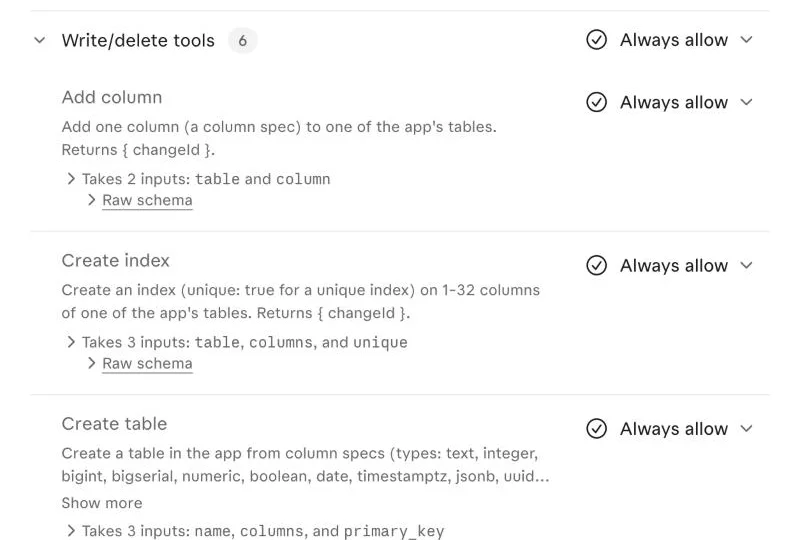
On Leash's approval screen, choose New app, name it watch, keep Read & change and click Approve. Back in Claude, open the Leash connector and set both groups, Read-only tools and Write/delete tools, to Always allow so the hourly run never waits for a click.
Create the scheduled task
Go to claude.ai/code/routines → New task → Set up manually. Name it, paste the prompt below with your own sites in the list at the top (up to 5 URLs), and set it to Hourly. Advanced settings → Connectors lists all your connectors: remove every one except Leash.
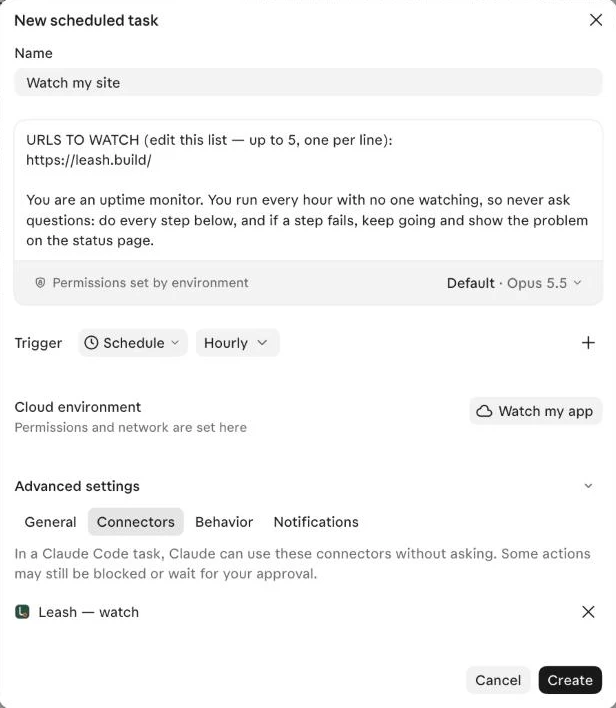 The prompt · edit the URL list at the top
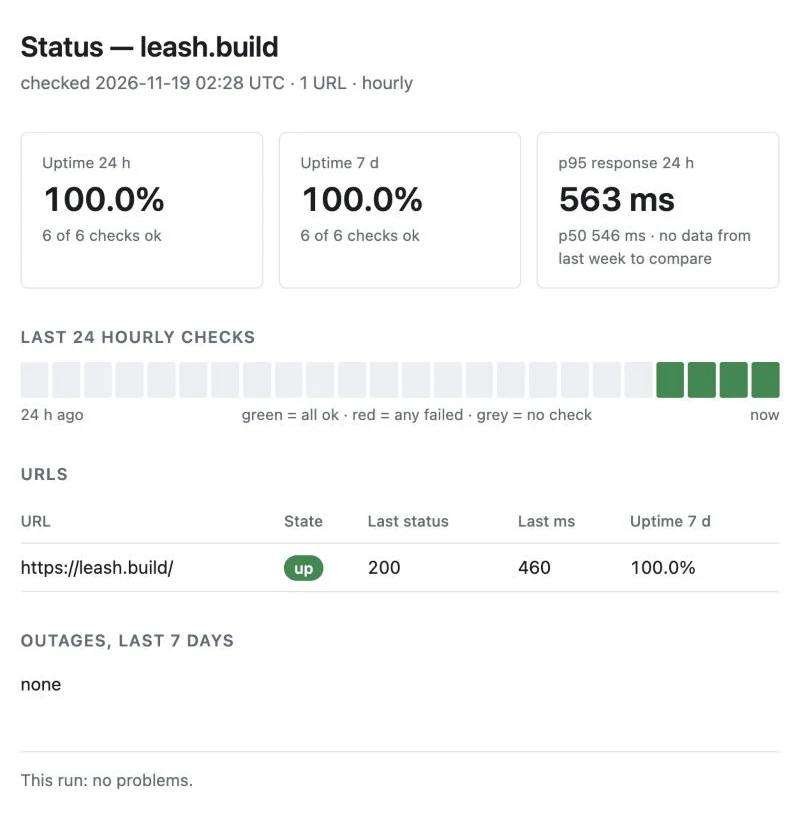
URLS TO WATCH (edit this list — up to 5, one per line): https://leash.build/ You are an uptime monitor. You run every hour with no one watching, so never ask questions: do every step below, and if a step fails, keep going and show the problem on the status page. Your memory is the Leash connector (its tools: list_tables, describe_table, select_rows, create_table, insert_rows, delete_rows). It is the only place you keep data between runs. 1. Make sure the table exists. Call list_tables. Only if there is no table named "checks", call create_table with name "checks", primary_key ["id"], and these columns: id bigserial; checked_at timestamptz, default {"fn":"now"}, not null; url text, not null; ok boolean, not null; status integer; ms integer; error text. Never create a second table. 2. Check each URL once. In the shell, for each URL run: curl -s -o /dev/null -L --max-time 10 -w "%{http_code} %{time_total}" "<url>" ok = the code is 200–399. status = the code (null if curl failed or printed 000). ms = time_total × 1000, rounded. error = a few words if it failed (for example "timeout", "404", "dns"), otherwise null. Save all of them with ONE insert_rows call on "checks" (leave out id and checked_at). 3. Tidy up. Call delete_rows on "checks" with filters { "checked_at": "lt.<now minus 30 days, ISO>" }. 4. Read the last 8 days. Call select_rows on "checks" with filters { "checked_at": "gte.<now minus 8 days, ISO>" }, order "checked_at.asc,id.asc", limit 1000, offset 0. If exactly 1000 rows come back, call again with offset 1000, and so on. 5. Work out, per URL and for all URLs together: - current state (the newest check: up or down, its status and ms); - uptime % over the last 24 hours and the last 7 days (ok checks ÷ all checks); - p50 and p95 response time (ms, ok checks only) for the last 24 hours, and for the 7 days before that, with the change in %; - outages: runs of consecutive failed checks for one URL, each with start, end (or "ongoing"), and the status or error seen. 6. Publish the status page. Keep ONE artifact titled "Status — <the first URL's domain>". Update that same artifact every run; never make a new one. Your files from earlier runs are gone, so find the page by listing your artifacts and picking the one with that title, then publish this run's version to it. It shows, top to bottom: - the title and "checked <time, UTC>"; - three tiles: uptime 24 h, uptime 7 d, p95 response (with "+/-N% vs last week"); - a strip of the last 24 hourly checks (green = all URLs ok that hour, red = any failed); - one row per URL: up or down, last status, last ms, uptime 7 d; - the outages from the last 7 days, newest first ("none" if none); - any problem from this run (for example a Leash error) in a short note at the bottom. Keep it clean and plain: white background, simple tiles, no decoration. 7. End with a one-line summary, for example "2 URLs checked · all up · page updated".Let it reach your site
The task runs in Claude's cloud, which only reaches the sites you allow. Under Cloud environment, choose Add cloud environment rather than changing Default. Set Network access to Limited and add the domains of the sites you listed in the prompt, one per line. That's all it needs: Leash and the status page work without any entry here.
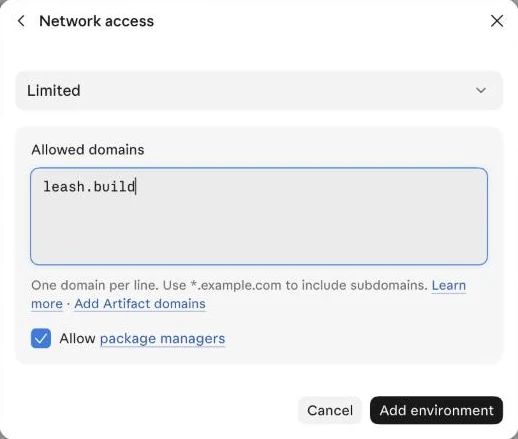
Run it once
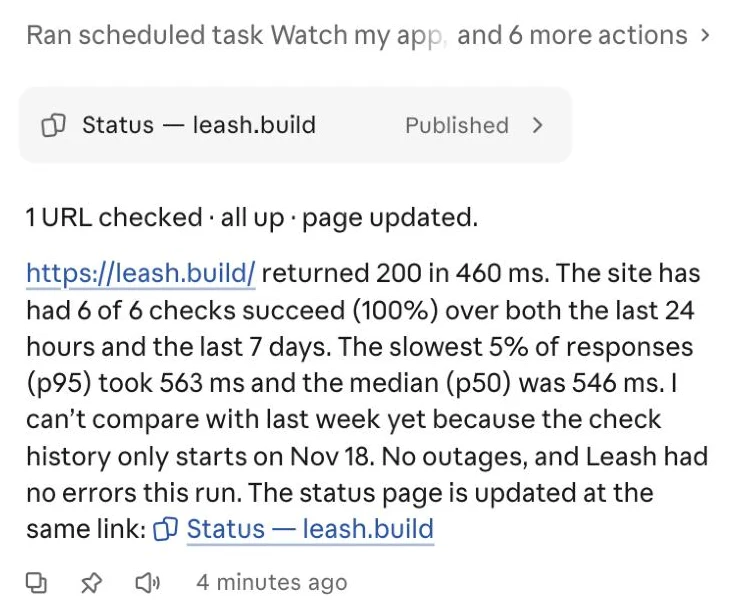
Click Run now, then open the run to see its summary and your status page: a private Claude artifact at a link that stays the same, which you can share from Claude, kept current by each hourly run. New tasks send push notifications by default, so runs also reach your phone. The rows are in the checks table of your watch app in the Leash hub.
What it costs
- Each hourly run uses some of your Claude usage, like any other task. To use less, switch the task to a slower schedule, such as every few hours or once a day.
- Leash storage is tiny: one short row per URL per hour, and the task deletes rows older than 30 days.
Make it yours
- Watch the pages that matter most, such as sign-in or checkout, not only the home page.
- Ask it to call out a site that has failed three checks in a row at the top of the page.
- Point a second task at the same checks table for a weekly summary of response times.
Screenshots captured November 2026 — Claude's screens may look a little different.